
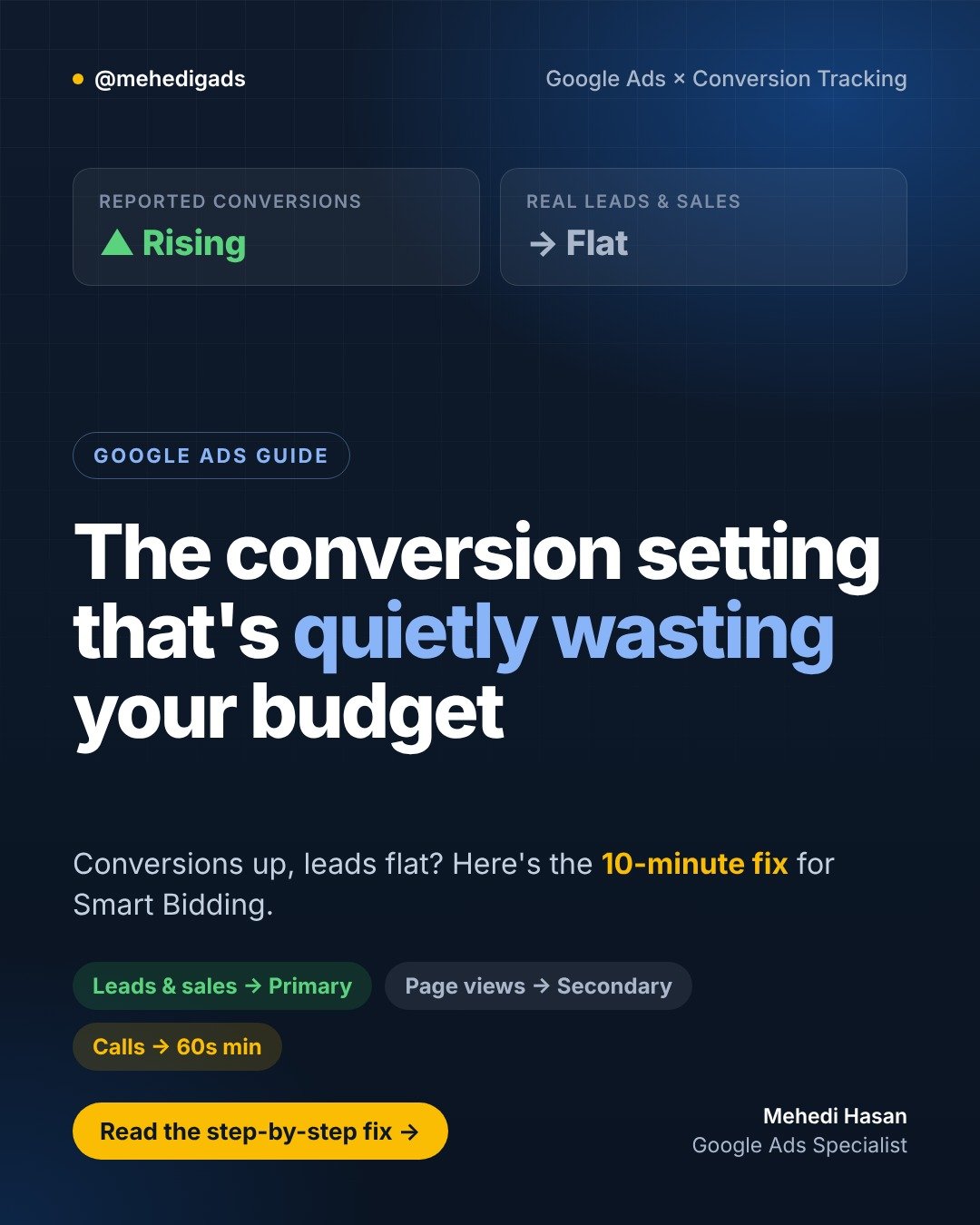
Your Google Ads dashboard says conversions are up. Your phone says otherwise. If that sounds familiar, the problem usually isn’t your keywords, your ads or your budget. It’s what your account counts as a conversion.
This is the single most common issue I find when I audit Google Ads accounts for local service businesses and e-commerce stores. The good news: it takes about 10 minutes to fix.
Why conversion settings matter so much
If you use Smart Bidding (Maximize Conversions, Target CPA, Maximize Conversion Value or Target ROAS), Google’s algorithm learns from every conversion action marked as Primary. It then bids to get more of those actions, as cheaply as possible.
That’s great when Primary conversions are real leads and sales. It’s a problem when they include low-value actions like:
- Page views (for example, a “thank you” page that also loads on refresh)
- Clicks on a phone number or “Get directions” button
- Very short phone calls, including wrong numbers and spam
- Imported Google Analytics events like scrolls or engaged sessions
These actions are cheap and easy to generate. So the algorithm finds more people who do them, not more people who become customers. Your conversion count climbs, your cost per conversion looks great, and your real leads stay flat.
Primary vs Secondary conversions
Google Ads lets you set each conversion action as Primary or Secondary:
- Primary actions appear in the “Conversions” column and are used for bidding.
- Secondary actions appear only in “All conversions.” You still see the data, but bidding ignores them.
Moving an action to Secondary doesn’t delete anything. It just stops that action from steering your budget.
The 10-minute fix, step by step
- Open your conversion summary. In Google Ads, go to Goals → Conversions → Summary.
- Review every action. For each one, ask: “Does this directly mean a lead or a sale?” Look at the “Action optimization” column to see which are Primary.
- Keep only real outcomes as Primary. Qualified form submissions, booked appointments, purchases, and phone calls that pass a minimum length.
- Move everything else to Secondary. Open the action, edit settings, and change it from Primary to Secondary.
- Set a minimum call length. For calls from ads and website calls, set the call length that counts as a conversion. 60 seconds is a sensible starting point for most service businesses.
- Check counting. Leads should usually count as “One” per click, so a single person who submits twice isn’t counted twice. Purchases should count as “Every.”
- Add values if leads differ. If a booked job is worth more than a quote request, assign conversion values and consider value-based bidding later.
What to expect after the change
Your reported conversion count will probably drop, and your cost per conversion will go up. That’s expected. You’re now seeing the real numbers, and that is exactly what Smart Bidding needs.
Give your campaigns one to two weeks to re-learn before judging results, and avoid making other big changes during that time. Then compare real leads and sales against the same period before the fix.
Quick checklist
- ✅ Primary = real leads, booked calls, sales
- ✅ Secondary = page views, button clicks, micro-actions
- ✅ Calls = 60-second minimum
- ✅ Leads count “One,” purchases count “Every”
- ✅ Wait 1–2 weeks before judging results
Clean signals in, better results out. If you’d like a second pair of eyes on your conversion setup, get in touch and I’ll take a look.